
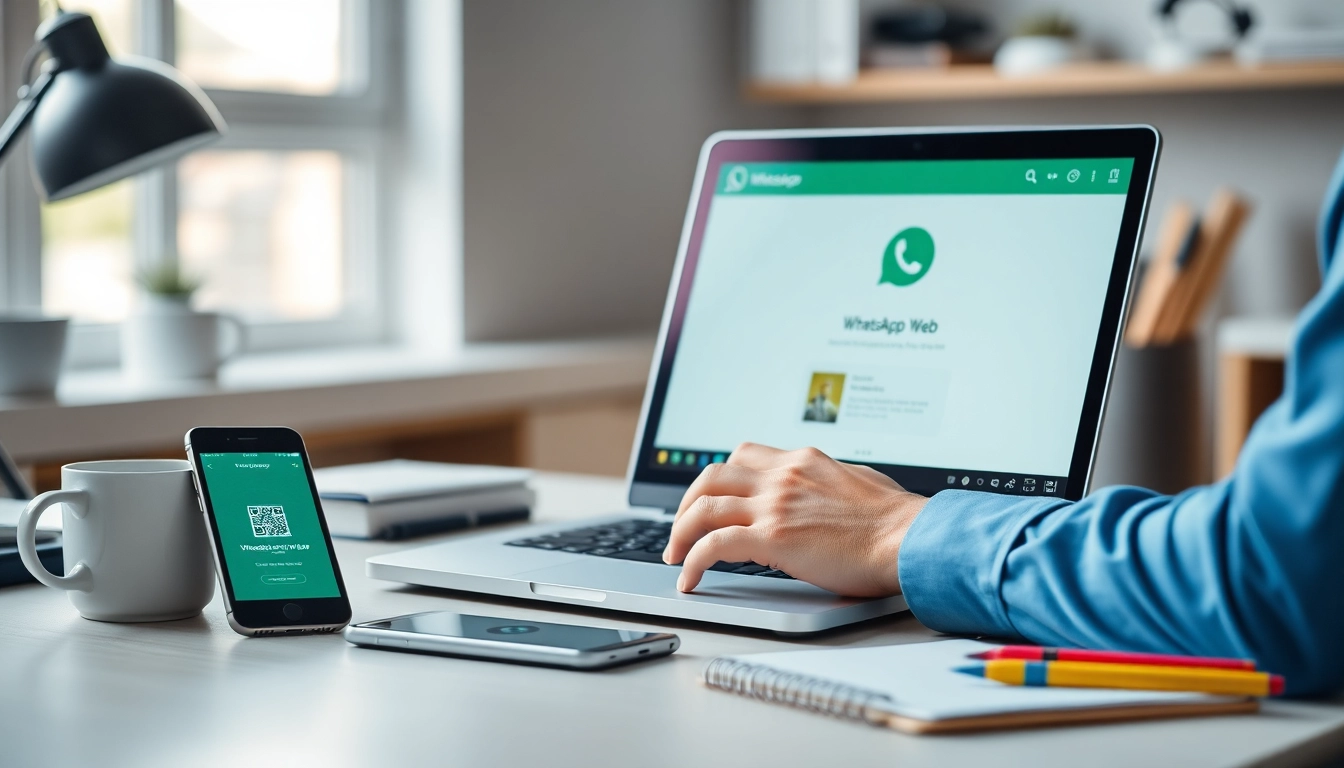
Understanding WhatsApp Web: An Overview
In an age where instant communication is paramount, WhatsApp Web has emerged as a vital tool for both personal and business interactions. This web-based extension of the popular messaging application offers seamless communication while leveraging the capabilities of your desktop or laptop. By bridging mobile and desktop environments, WhatsApp Web enables users to stay connected with friends, family, and colleagues, ensuring that no important messages are missed across devices. In this comprehensive guide, we will delve into the essential features, setup process, and security protocols associated with WhatsApp Web.
What is WhatsApp Web?
WhatsApp Web is an online platform that allows users to access their WhatsApp account through a web browser. By linking their mobile device to the web application, users can send and receive messages, share files, and manage their communications directly from their computer. This functionality makes it easier to communicate during work hours, allows for quick replies, and improves multi-tasking capabilities.
Key Features and Benefits of WhatsApp Web
- Seamless Synchronization: WhatsApp Web reflects messages from your mobile app in real-time, allowing for instant access to ongoing conversations.
- User-Friendly Interface: The web version provides a clean, organized layout that mirrors the mobile experience, making it easy for users to navigate.
- Effortless File Sharing: Users can drag and drop files directly into conversations, facilitating the quick exchange of documents, photos, and videos.
- Group Chats Management: WhatsApp Web enables users to manage group chats efficiently from a larger screen, enhancing collaboration and communication among team members.
How WhatsApp Web Supports Your Communication Needs
Whether you are coordinating work projects, connecting with family, or managing social groups, WhatsApp Web offers essential support through its extensive features. It accommodates diverse communication styles by allowing users to switch between personal and professional conversations easily. The added convenience of typing on a full keyboard enhances the user experience significantly, especially for those who engage in lengthy discussions.
Getting Started with WhatsApp Web
Step-by-Step Guide to Accessing WhatsApp Web
Accessing WhatsApp Web is simple and straightforward. Here’s how to get started:
- Open your preferred web browser. Visit the official WhatsApp Web page at web.whatsapp.com.
- Open the WhatsApp app on your mobile device.
- Tap the three dots (Menu) on Android or the settings icon on iOS.
- Select “Linked Devices” and then tap on “Link a Device.”
- Scan the QR code displayed on your computer screen using your mobile device.
- Once scanning is completed, your messages and chats will sync instantly, allowing you to start communicating immediately.
Linking Your Phone to WhatsApp Web
Linking your mobile device to WhatsApp Web is a crucial step, ensuring a secure and seamless connection. Every time you use WhatsApp Web, your phone must remain connected to the internet, as the web app relies on it to function. This connection maintains the synchronization of messages, ensuring that both platforms reflect real-time communication.
Troubleshooting Common Access Issues
Sometimes, users may encounter issues while accessing WhatsApp Web. Here are common problems and their solutions:
- QR Code Not Scanning: Ensure that your phone’s camera is functioning correctly and that you are positioned correctly to scan the QR code.
- Web Version Not Loading: Check your internet connection, refresh the page, or try using a different browser.
- Session Timeout: If you are inactive for an extended period, your session may time out. Simply re-link your device to regain access.
Security Measures and Privacy on WhatsApp Web
Understanding End-to-End Encryption
One of the standout features of WhatsApp Web is its commitment to user privacy through end-to-end encryption. This means that only you and the person you are communicating with can read the messages. Even WhatsApp cannot access your conversation content, offering an additional layer of security.
How to Protect Your WhatsApp Web Account
To enhance the security of your WhatsApp Web account, consider implementing the following measures:
- Log out after use: Always log out of your account when you finish using WhatsApp Web on shared or public computers.
- Enable Two-Step Verification: Adding this feature through your phone settings can prevent unauthorized access to your account.
- Monitor Linked Devices: Regularly check the “Linked Devices” section to see which devices are connected to your account and remove any that look unfamiliar.
Best Practices for Secure Messaging
Maintaining privacy is crucial when using WhatsApp Web. Follow these best practices:
- Be cautious when sharing sensitive information.
- Use secure internet connections instead of public Wi-Fi.
- Regularly update your app to benefit from the latest security enhancements.
Maximizing Efficiency with WhatsApp Web
Managing Multiple Conversations on WhatsApp Web
WhatsApp Web allows users to manage several conversations at once, a feature highly beneficial for those juggling multiple chats. You can easily switch between conversations and even keep several tabs open for different groups or contacts, improving workflow significantly.
Sharing Files and Media Effortlessly
Sharing files through WhatsApp Web is a breeze. Users can drag and drop files directly into the chat window, making it an efficient way to send documents or images. This feature is especially useful for businesses that require quick document exchanges.
Using WhatsApp Web for Business Communication
For businesses, WhatsApp Web serves as an effective communication tool, especially in remote work settings. Its capability to handle group chats, broadcast messages, and facilitate file sharing makes it an excellent choice for team collaboration. The integrated message search function allows quick access to past conversations, enhancing productivity.
Future Trends for WhatsApp Web in 2026
Anticipated Features and Updates
As we approach 2026, WhatsApp Web is expected to introduce several new features. These may include enhanced video conferencing capabilities, integrations with other productivity tools, and improved user interface options, catering to the growing demand for streamlined communication.
The Role of WhatsApp Web in Remote Work
With the increase in remote work, tools like WhatsApp Web are becoming essential for maintaining communication across teams. It facilitates not only personal conversations but also supports collaborative work through its efficient messaging and sharing functionalities.
Innovations in Communication Technology
The future of communication technology looks promising, with trends pointing toward more interactive and integrated platforms. Innovations such as augmented reality messaging and AI-driven chatbots may soon enhance user experiences on WhatsApp Web, making it an even more powerful tool for users worldwide.